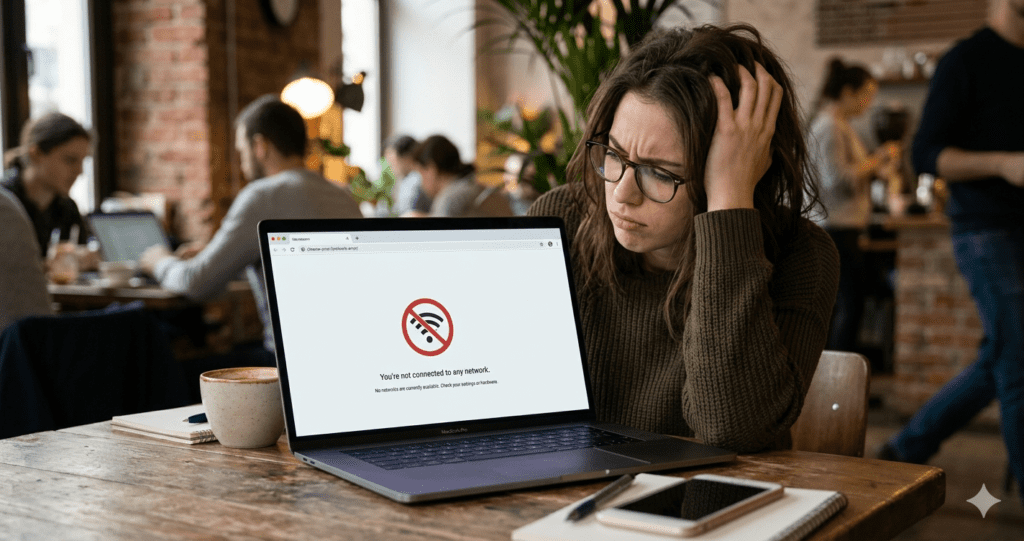
WiFi Not Showing in Windows 11
So… Your WiFi Just Disappeared?
You open your laptop, ready to browse, work, or stream… and suddenly—nothing. No WiFi icon. No networks. Just silence.
If WiFi not showing in Windows 11? you’re not alone. This happens more often than you’d think—and the good news? It’s usually fixable in minutes.
I’ve helped people fix this exact issue—from students to remote workers—and in most cases, it wasn’t anything serious.
Let’s walk through it together.
Why WiFi Is Not Showing in Windows 11 (In Plain English)
🚀[Click here to see why your WiFi Not Showing in Windows 11]
Before we fix it, here’s what might be going on:
- Your laptop accidentally turned WiFi off
- Windows update messed with your drivers
- Your WiFi adapter is “sleeping” or disabled
- A small software glitch is blocking it
- Or rarely… hardware issue
Think of it like this: your WiFi didn’t vanish—it’s just hiding or not waking up.
1. First Check (Don’t Skip This!)
I know this sounds too simple—but it works more than you expect.
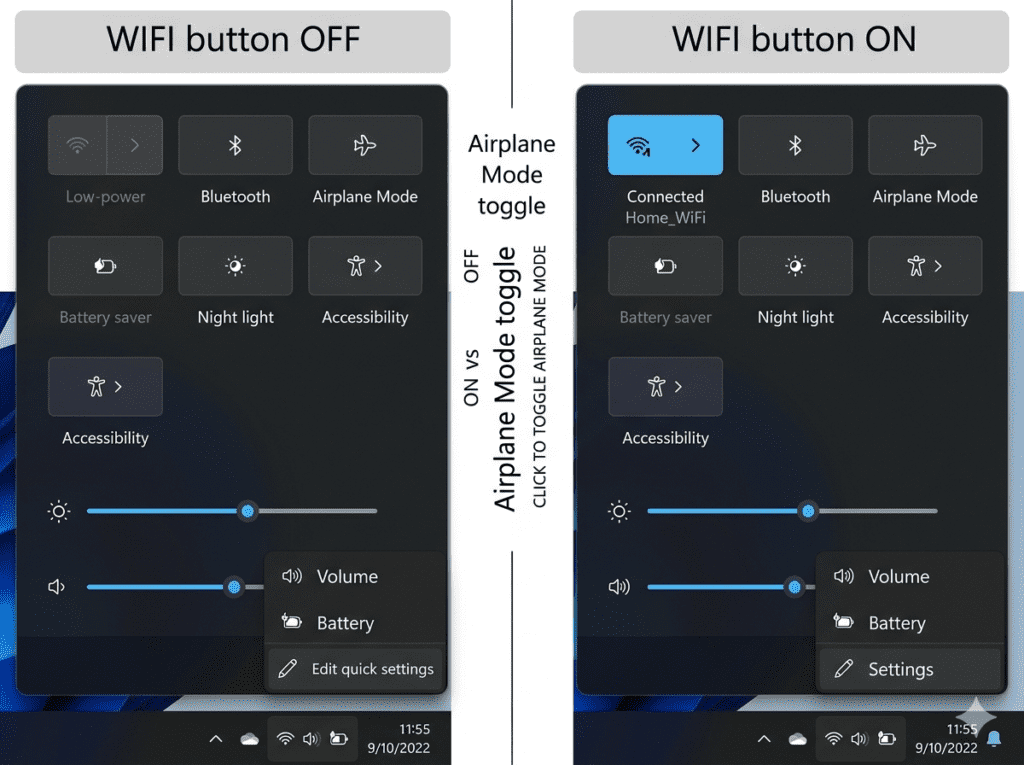
Press Windows + A.
Do you see a WiFi button?
- If YES → Click it ON
- If NO → Keep going
👉 Real story: Someone almost replaced their laptop… turns out WiFi was just toggled off.
If you’re someone who works online daily, having a stable connection is just as important as using the Best Apps for Content Creation to stay productive.
WiFi Not Showing in Windows 11
2. Airplane Mode Happens More Than You Think
Still no WiFi?
Check if Airplane Mode is on:
- Press Windows + A
- Turn OFF Airplane Mode
It disables WiFi completely.
3. The “Magic” Restart Fix
Yes, it sounds cliché—but it works.
- Restart your laptop
- Turn off your router for 30 seconds
📊 Fun fact: About 1 in 3 network issues are fixed by restarting.
4. Your WiFi Adapter Might Be Disabled
This is one of the most common reasons WiFi is not showing in Windows 11.
Here’s how to check:
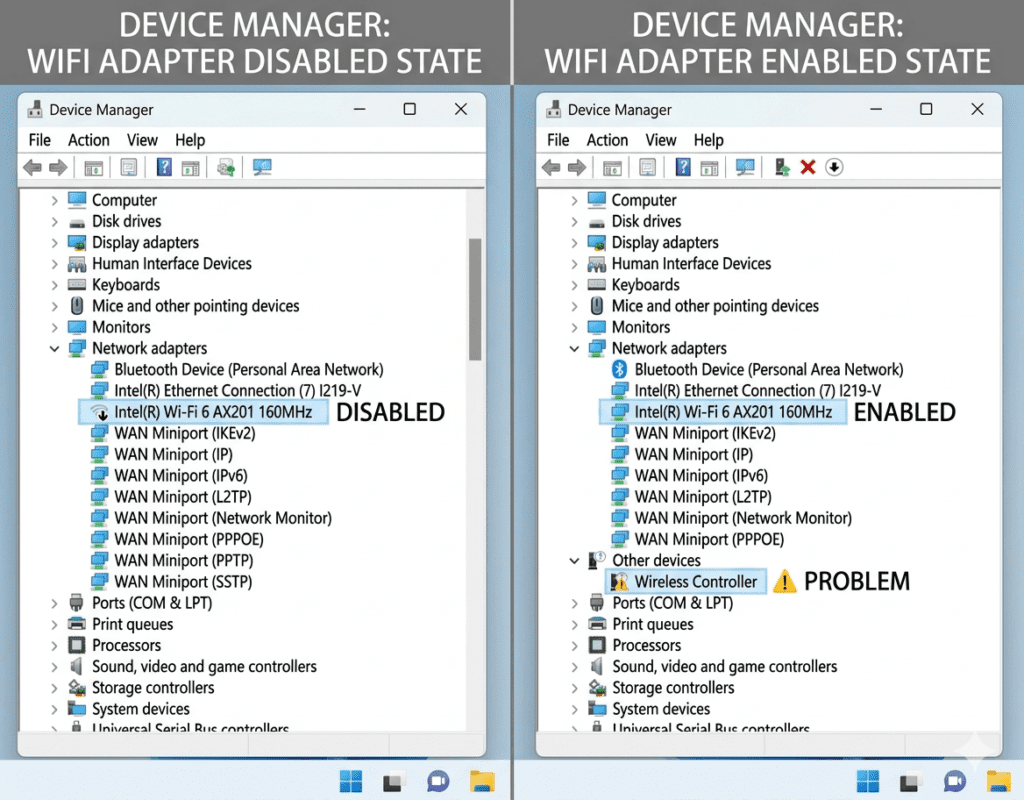
- Right-click Start
- Click Device Manager
- Open Network adapters
Now look:
- If you see your WiFi → Right-click → Enable
- If it has a warning sign → we’ll fix that next
5. Drivers: The Hidden Problem
Let’s keep it simple.
Drivers are like translators between your laptop and WiFi. If they break, WiFi disappears.
Quick Fix:
- Right-click your WiFi adapter
- Click Update driver
If that doesn’t work, you can also download updated drivers directly from the official Microsoft support page.
If that still doesn’t work…
6. The Fix That Works 80% of the Time
Reinstall the driver.
- Right-click WiFi adapter
- Click Uninstall device
- Restart your laptop
Boom—Windows usually fixes it automatically.
This is especially important if you rely on your PC for tasks like blogging or setting up websites using guides like How to Install WordPress for Free in 2026 (No Laptop Needed).
7. Let Windows Fix It For You
Windows actually has a built-in fixer.
Go to:
- Settings → Troubleshoot → Other troubleshooters
- Run Network Adapter
It’s like asking Windows to diagnose itself.
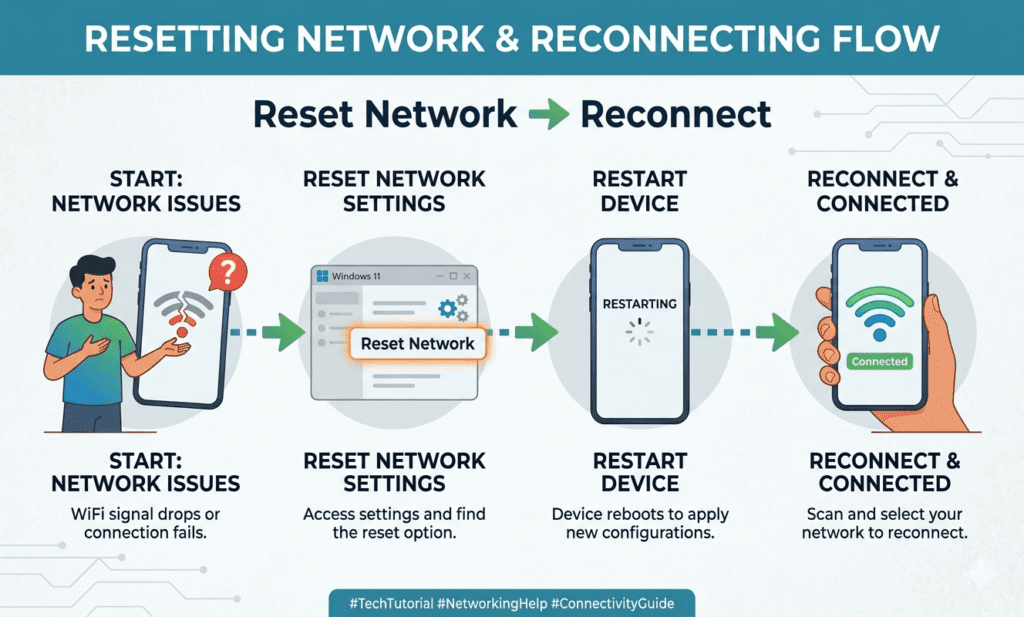
8. Still Nothing? Reset Everything (Safe Option)
If WiFi is still not showing in Windows 11, try this:
- Go to Advanced network settings
- Click Network reset
⚠️ You’ll need to reconnect to WiFi afterward.
If you’re also dealing with mobile connectivity issues, you might find this helpful: Mobile Data Connected but Not Working?
9. One Setting Most People Miss
Press Windows + R, type:
services.msc
Find WLAN AutoConfig.
Make sure it’s:
- Running
- Set to Automatic
If this is off, WiFi won’t even show.
10. What If There’s No WiFi Adapter At All?
If you don’t see WiFi inside Device Manager:
- Driver might be missing
- Or hardware issue
You can also try getting drivers from your processor manufacturer like Intel.
Quick workaround:
Use a USB WiFi adapter.
They’re cheap and plug-and-play.
If you’re thinking of upgrading entirely, you might want to explore options like the Best phone for content creation for mobile productivity.
11. Windows Updates Can Fix (or Break) Things
Sometimes an update causes the issue… and another update fixes it.
Go to:
- Settings → Windows Update
Install any pending updates.
Real-Life Example
A freelancer couldn’t join an important Zoom call because WiFi disappeared.
After trying everything, the fix was simple:
👉 Reinstalling the driver
Took 3 minutes.
Saved a job.
Moments like this are why using smart tools—like those listed in Stop Wasting Time: 7 AI Tools for Productivity That Can Replace 10+ Office Apps in 2026—can make a huge difference when tech issues strike.
FAQ On WiFi Not Showing in Windows 11
Why is WiFi not showing in Windows 11?
Usually due to drivers, disabled adapter, or a system glitch.
What’s the fastest fix?
Reinstalling the WiFi driver or restarting your PC.
Can this be a hardware issue?
Yes—but only if the adapter is completely missing in Device Manager.
Do I need a technician?
Not in most cases. These steps fix it for most users.
Why did my WiFi disappear after a Windows update?
Updates can sometimes replace or break drivers. Reinstalling or updating the WiFi driver usually fixes it.
Why is WiFi option missing from Settings?
This often means the adapter is disabled or the driver is not installed properly.
How do I know if my WiFi adapter is broken?
If it doesn’t appear at all in Device Manager even after reinstalling drivers, it may be faulty.
Will a network reset delete my files?
No. It only removes network settings like saved WiFi passwords.
Can antivirus or VPN cause WiFi issues?
Yes. Some VPNs or firewall settings can block or hide network connections temporarily.
Why does WiFi keep disappearing randomly?
This could be due to power-saving settings or unstable drivers. Updating drivers usually helps.
Is using a USB WiFi adapter safe?
Yes. It’s a common and reliable temporary or permanent fix.
Can overheating affect WiFi?
In rare cases, yes. Excess heat can affect internal components, including the WiFi card.
What if none of these fixes work?
Then it’s likely a hardware issue, and you may need repair or replacement.
Final Thoughts
If WiFi is not showing in Windows 11, don’t panic.
It looks serious—but most times, it’s a small fix.
Start from the top, go step by step—and you’ll likely have your internet back before you finish this guide.
: WiFi not showing in Windows 11