The Mobile-First Revolution
10 years ago, I told a friend of mine that in the near future, he could install WordPress on your phone and manage a fully functional website entirely from it, and he laughed at me.. Fast forward to 2026, and mobile devices have more computing power than the servers that ran the early internet.
Whether you’re commuting in Port Harcourt, sipping coffee, or relaxing at home, you can now start a blog, e-commerce store, or personal project entirely from your phone. In this guide, we will show you how to install WordPress on your phone, optimize it for mobile users, and even monetize it effectively.
Mobile devices account for over 65% of global web traffic in 2026, making it logical to create directly on mobile.
Example: Sarah, a nurse, started her lifestyle blog on WordPress from her smartphone in 2023. Within one year, she reached 50,000 monthly visitors—all managed from her phone during her free hours.
Curious about the shocking truth about starting a blog in 2026? Check our detailed guide Shocking Truth About Starting a Blog in 2026 (Beginner Reality Check) to see what beginners must know before diving in.
Why Install WordPress
- Flexibility: 40% of new digital entrepreneurs use a mobile device as their primary business tool.
- Cost-Effective: You don’t need to invest in expensive desktops or laptops.
- Speed: Modern mobile browsers render complex dashboards like the WordPress block editor seamlessly.
Learning how to install WordPress on your phone gives you full control over your website, whether for blogging, e-commerce, or testing ideas.
If your phone feels slow during setup, check our guide on How to Speed Up My Android Phone in 2026: Ultimate Guide to Make Your Device Lightning Fast for essential optimization tips.
Method 1: Using the Official WordPress App (Beginner-Friendly)
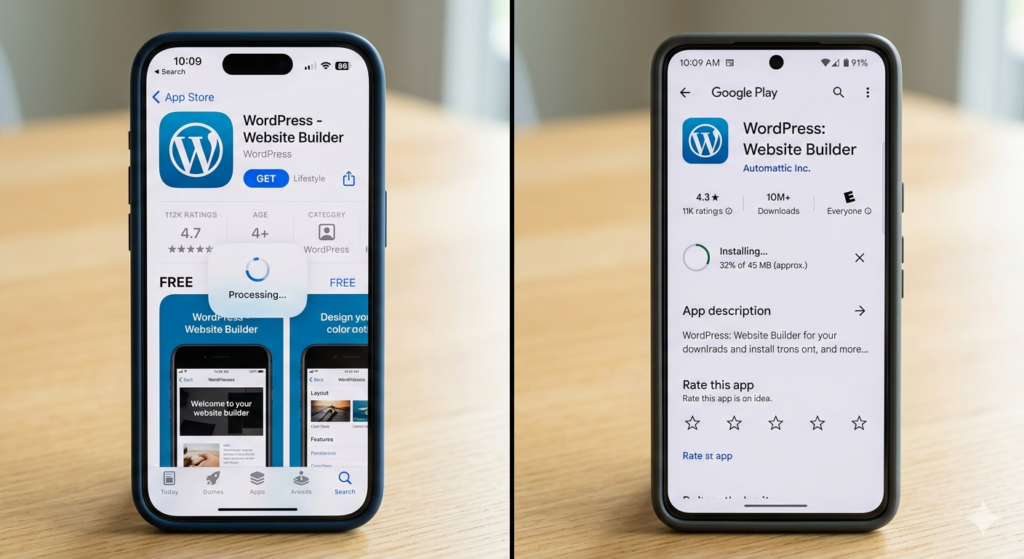
Step 1: Install the WordPress App
- Open the Apple App Store (iOS) or Google Play Store (Android).
- Search for WordPress (blue icon with white ‘W’).
- Download and launch the app.
How to Install WordPress on Your Phone in 2026
Step 2: Set Up Your First Site
- Tap Sign Up.
- Choose a domain like myawesomeblog.wordpress.com.
- Select a theme and layout.
- Upgrade to custom domain if desired.
Tip: This method is the simplest but has limitations. You cannot install custom plugins or third-party themes unless you upgrade to a premium plan.
Learn more about How To Set Up Email on Phone in 2026 (Proven Method for Android & iPhone) for integrating professional email with your WordPress site.
Method 2: Self-Hosted WordPress via Mobile Browser (Professional Route)
Step 1: Choose a Mobile-Friendly Hosting Provider
Good options include:
- Hostinger – affordable, mobile-optimized, and beginner-friendly.
- Bluehost
- SiteGround
Affiliate Disclaimer: Some links in this article are affiliate links. If you purchase through them, we may earn a commission at no extra cost to you.
Step 2: Purchase Hosting & Domain
- Select a hosting plan on your mobile browser.
- Choose a domain name, e.g., yourbrand.com.
- Checkout with Apple Pay, Google Pay, or credit card.
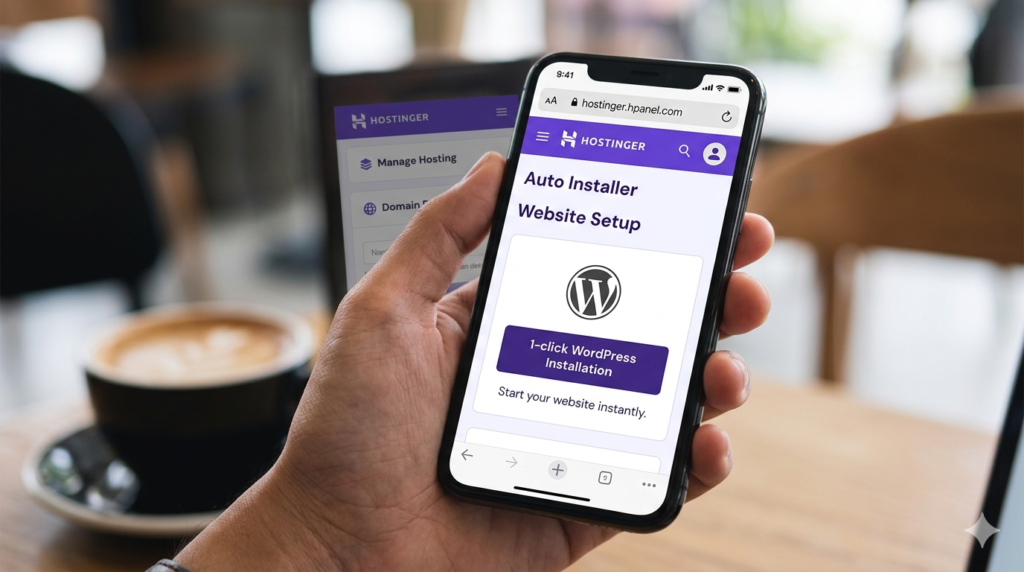
Step 3: 1-Click WordPress Installation
- Log in to your hosting dashboard.
- Locate Auto Installer / Website Setup.
- Select WordPress, fill in site details, and tap Install.
Within 60 seconds, WordPress will be ready at yourdomain.com/wp-admin.
How to Install WordPress on Your Phone in 2026
Step 4: Bonus Tips
- Set up a custom email like hello@yourdomain.com from your phone.
- Test mobile responsiveness using Google PageSpeed Insights.
Check our guide on How to Speed Up My Android Phone in 2026 for a faster WordPress mobile experience.
For setting up your professional email address quickly, refer to How To Set Up Email on Phone in 2026.
Wondering how long it takes to make money blogging? Read How Long Does It Take to Make Money Blogging? for realistic timelines.
Method 3: Running WordPress on a Local Android Server (Developer Route)
This method is perfect for offline development and testing.
Step 1: Prepare Your Android Device
Ensure your device has sufficient RAM and processing power.
Step 2: Download Tools
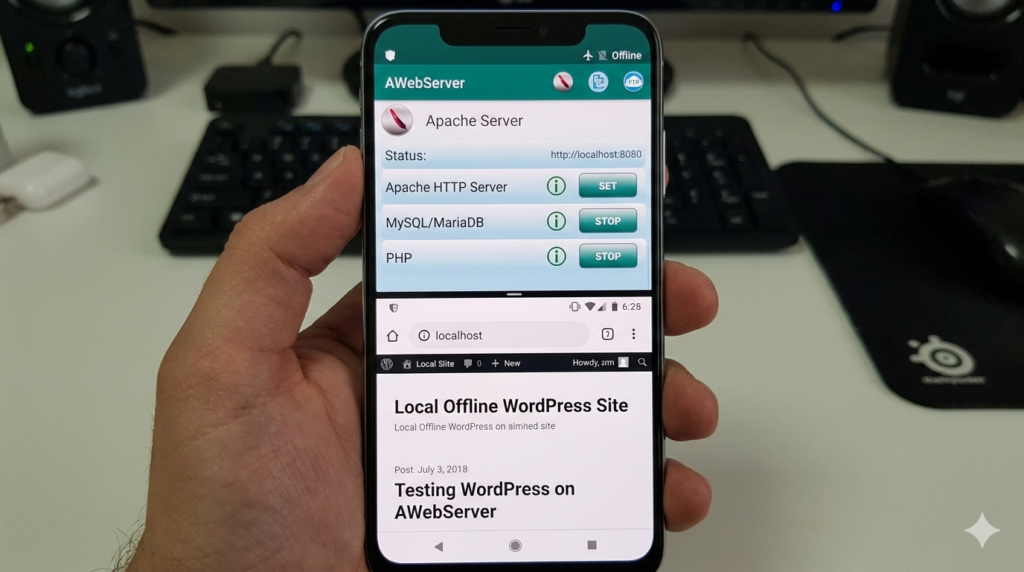
- Server App: KSWEB or AWebServer (bundled Apache, PHP, MySQL).
- WordPress Core: Download latest .zip from WordPress.org.
Step 3: Configure Local Server & Database
- Start the server app.
- Open phpMyAdmin, create database named wordpress.
Step 4: Install WordPress Locally
- Extract WordPress .zip into server root directory.
- Open mobile browser at wordpress.
- Follow 5-minute setup, enter database credentials, and install.
Step 5: Export to Live Server Later
- Use All-in-One WP Migration plugin.
- Export and import to live hosting account when ready.
Designing & Managing Your WordPress Site on Mobile
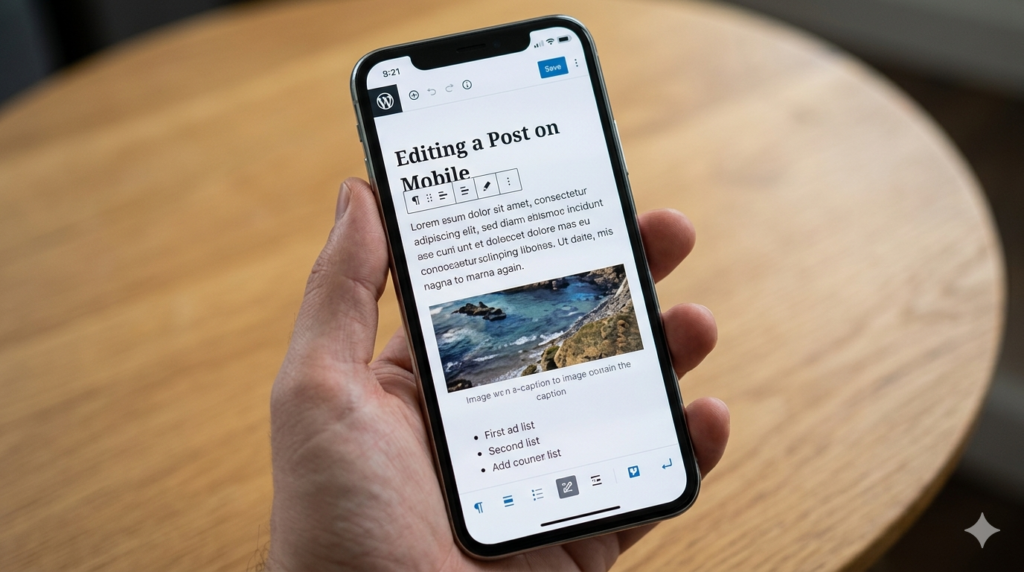
Mastering the Mobile Block Editor
- Tap + to add paragraphs, images, headings.
- Use top-right three-dot menu for categories, tags, and settings.
Choose Mobile-Friendly Theme
- Lightweight and responsive themes: GeneratePress, Astra, Kadence.
- Prebuilt layouts stack neatly on small screens.
Optimize Images Before Uploading
- Use apps like Photo Compress or Snapseed.
- Keep images under 200KB to maintain site speed.
Ensuring Google AdSense Approval
- Essential Pages: About, Contact, Privacy Policy, Terms of Service.
- Clear Mobile Navigation: Test hamburger menu and links.
- Original Content: 15–20 in-depth articles, 1000+ words.
- Fast Loading Speed: Test with Google PageSpeed Insights; use Astra or GeneratePress for top mobile scores.
FAQ On How to Install WordPress on Your Phone in 2026
Q1: Can I run a full business from my phone?
Yes. Many bloggers and entrepreneurs run six-figure sites entirely from mobile devices.
Q2: Is local Android server installation safe?
Yes. Offline servers like AWebServer are sandboxed and not exposed to the internet.
Q3: Do I need coding skills to learn How to Install WordPress on Your Phone?
No. Methods 1 and 2 require zero coding; Gutenberg’s block editor is fully visual.
Q4: Why does the WordPress admin sometimes look squished on mobile?
Check your browser settings; enable or disable Desktop Site mode as needed.
Q5: Can I move my offline site to a live server later?
Yes, using plugins like All-in-One WP Migration.
Q6: Can I install plugins from my phone?
Yes, but only if using self-hosted WordPress (Method 2) with admin access.
Q7: Can I switch themes easily on mobile?
Yes. Themes like GeneratePress and Astra are mobile-optimized and allow live customizations.
Q8: How do I backup my mobile-built site?
Use plugins like UpdraftPlus or All-in-One WP Migration to create backups from your phone.
Q9: Will my site load fast if I manage it entirely on mobile?
Yes, if you use a lightweight theme, compress images, and select good hosting.
Q10: Can I monetize my mobile-built WordPress site?
Absolutely. You can add Google AdSense, affiliate links, or WooCommerce stores directly from your phone.
Conclusion
Building a WordPress site entirely from your phone is no longer science fiction. Whether using the official WordPress app, a self-hosted mobile setup, or a local offline server, you can now:
- Start a blog
- Launch an e-commerce store
- Test themes and code
All without a desktop. The future is truly mobile-first, and your smartphone is now a full web development workstation.