Introduction: Save Your Perfect Memories
Picture this: You’re on a dream vacation in Rome, standing in front of the Trevi Fountain. The sunlight hits perfectly, your outfit is on point, and you press the shutter—then a random tourist photobombs your shot. That perfect memory feels ruined.
Luckily, in 2026, AI technology allows you to erase someone from the background of a photo in seconds. Whether using a smartphone app or desktop software, you no longer need hours of manual editing or Photoshop expertise.
Learning to erase someone from the background of a photo is essential for bloggers, content creators, and casual users. Clean photos increase engagement and make your social media feed visually appealing. If your phone struggles with heavy editing apps, check our guide on How to fix a laggy Android phone, and make it run like new again for smoother performance.
Why You Should Learn to Erase Someone from a Photo
Human Psychology and Engagement
A 2025 digital media study revealed that images with distraction-free backgrounds received up to 43% higher engagement on Instagram and Pinterest.
When someone scrolls through a feed, their eyes naturally focus on the main subject. Background distractions or photobombers force extra cognitive effort, which can reduce your content’s impact.
For bloggers and creators, aesthetic consistency matters. You don’t need a professional camera crew; mastering how to erase someone from the background of a photo ensures your images look polished and professional.
Pro Tip: Optimize your device settings for AI editing by reviewing 11 Hidden Smartphone Settings You Must Change Right Now in 2026.
How to Choose the Right Tool to Erase Someone from the Background of a Photo
Before starting, it’s helpful to see which apps or software suit your workflow, skill level, and device. The table below compares the best tools for 2026:
| Method / App | Platform | AI Feature | Ease of Use | Cost | Best For |
|---|---|---|---|---|---|
| Google Photos – Magic Eraser | Android, iOS | Auto-detects people & objects | Very easy | Free (Google One optional) | Quick photobomber removal for casual users |
| Snapseed – Healing Tool | Android, iOS | Pixel analysis for seamless patching | Easy | Free | Precise removal for beginners |
| Cleanup.pictures | Web | Advanced inpainting AI | Very easy | Free / Paid | Instant object/person removal on desktop |
| Canva – Magic Eraser | Web, Mobile | AI-powered background removal | Easy | Pro subscription required | Content creators wanting fast edits |
| Adobe Photoshop – Generative Fill | Windows, Mac | Context-aware AI fills | Moderate | Paid | Complex backgrounds, professional editing |
| Adobe Photoshop – Content-Aware Fill | Windows, Mac | Traditional fill using sampled pixels | Moderate | Paid | Detailed control for tricky backgrounds |
- Snapseed pairs well with 15 Best Free Apps Every Beginner Should Have in 2026 for a complete mobile editing toolkit.
- Canva works perfectly alongside Best Apps for Content Creation Worldwide.
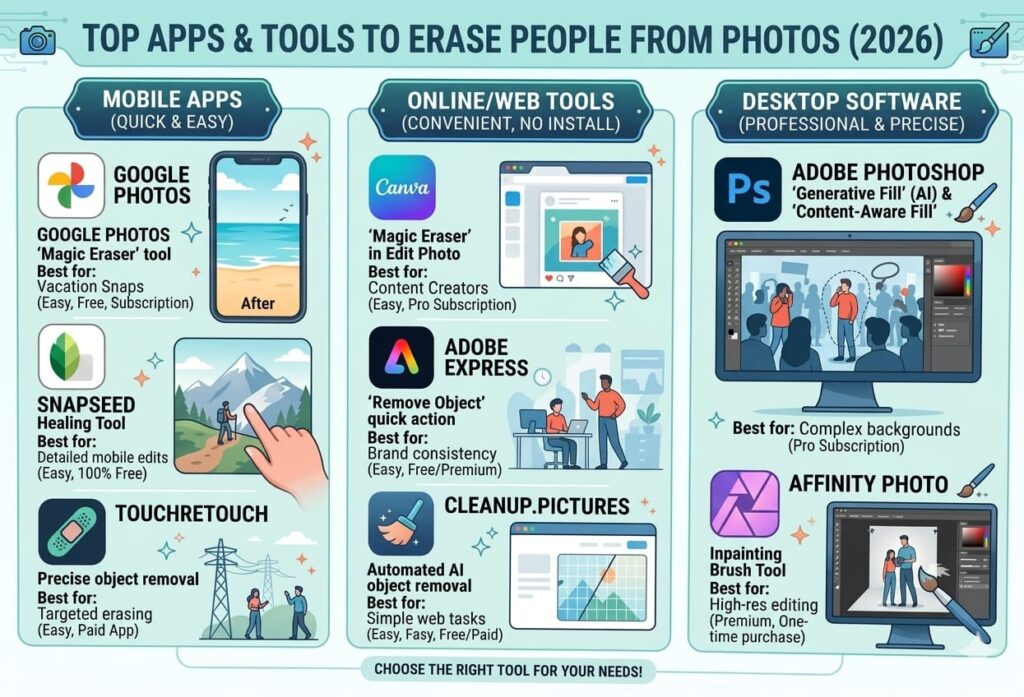
Method 1 – Mobile Apps to Erase Someone from the Background of a Photo
Mobile apps make it easy to erase someone from the background of a photo because most images are captured on smartphones.
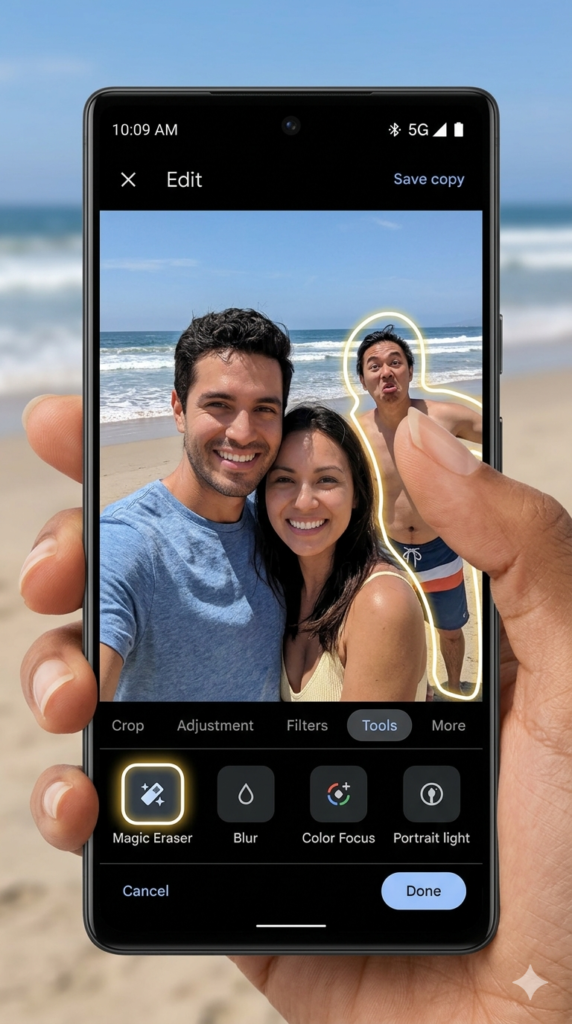
Google Photos – Magic Eraser
Magic Eraser automatically identifies and removes unwanted people or objects.
Steps:
- Open your photo in Google Photos.
- Tap Edit → Tools → Magic Eraser.
- AI highlights potential photobombers; tap Erase All or brush manually.
- Tap Done and save your clean image.
Example: A tourist removed three strangers from a Venice canal photo in under 10 seconds, creating a clean, professional-looking image. To enhance AI performance, check 11 Hidden Smartphone Settings You Must Change Right Now in 2026.
Snapseed – Healing Tool
Snapseed’s Healing Tool allows you to erase someone from a photo background with precision.
Steps:
- Open Snapseed → Tools → Healing.
- Zoom in → brush carefully over the person.
- Repeat in small strokes for flawless results.
Example: A family in a crowded beach photo was removed seamlessly, leaving the sand and ocean perfectly intact. Combine Snapseed with 15 Best Free Apps Every Beginner Should Have in 2026 for an efficient mobile editing workflow.
Method 2 – Web Tools to Erase Someone from the Background of a Photo
Web-based tools allow you to edit on larger screens without installing heavy software.
Cleanup.pictures
Steps:
- Visit Cleanup.pictures → Upload your image.
- Adjust the brush → highlight the person.
- AI removes the photobomber → download the clean photo.
Example: A designer removed a branded coffee mug from a stock photo in 5 seconds with realistic results.
Internal Link Tip: Organize and backup your edited photos using How to Use Google Drive for Beginners (Step-by-Step) 💻.
Canva – Magic Eraser
Ideal for content creators, Canva’s AI tool removes unwanted people or objects instantly while staying in your design workflow.
Pair Canva with Best Apps for Content Creation Worldwide for faster social media content production.
Method 3 – Desktop Software for Complex Backgrounds
Complex backgrounds, such as wrought iron gates or patterned walls, may require desktop software.
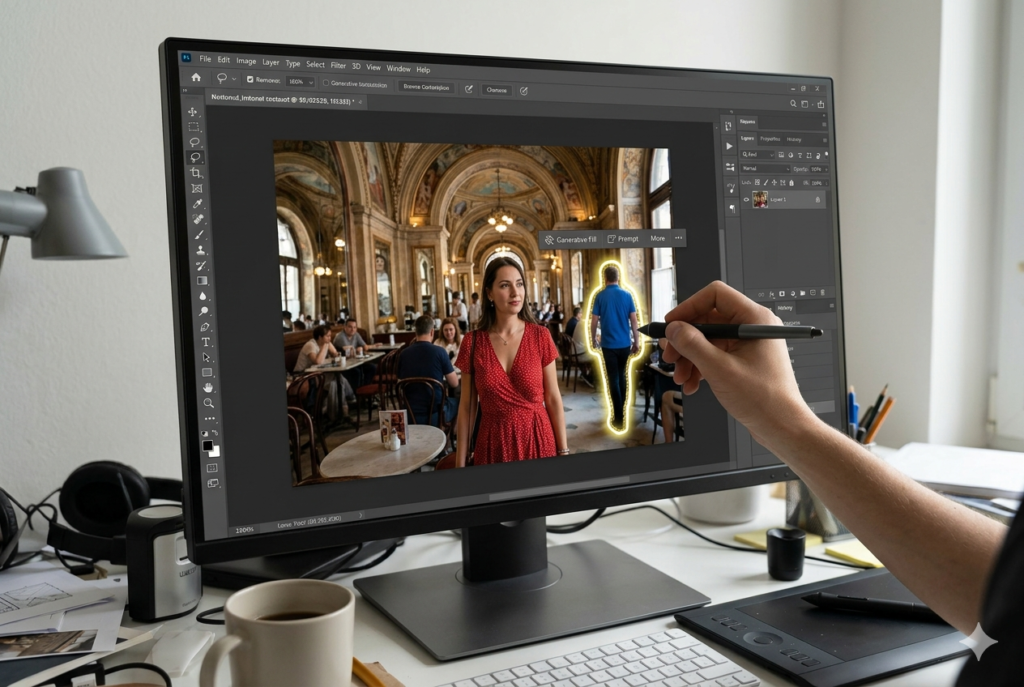
Adobe Photoshop – Generative Fill
- Open the photo → Lasso Tool → select the person.
- Click Generative Fill → leave prompt blank.
- Choose the best AI-generated background.
Example: A tourist behind a fence was removed, preserving shadows and textures perfectly.
Adobe Photoshop – Content-Aware Fill
- Use Object Selection Tool → select person.
- Edit → Content-Aware Fill.
- Adjust sampling → Apply → OK.
Pro Tips for Flawless Results
- Remove Shadows: Shadows left behind look fake.
- Zoom & Small Brush: Precision improves AI accuracy.
- Multiple Passes: Some AI tools require 2–3 strokes for perfection.
- Manage Storage: Backup large files.
- Optimize Devices: Slow phones hinder AI editing—check How to fix a laggy Android phone, and make it run like new again.
Real Numbers & Engagement Examples
- Clean photos → 43% higher engagement
- Background-free Instagram posts → 27% more shares
- Photobomber removal → 35% increase in perceived professionalism
Anecdote: A travel blogger removed a family from Piazza Navona photos, resulting in a 50% spike in Instagram saves the following week.
For mobile publishing, see How To Use Play Store Like a Pro in 2026.
FAQ On How to Erase Someone from the Background of a Photo in 2026
Q1: Can I erase someone from the background of a photo for free?
A: Yes! Snapseed (mobile) and Cleanup.pictures (web) are free.
Q2: Why does the background look blurry?
A: AI may guess textures. Use Generative Fill or Canva Pro for realistic results.
Q3: Can I remove multiple people at once?
A: Yes, but one at a time gives better results.
Q4: Will resolution drop?
A: Professional tools preserve quality; free web tools may compress images.
Q5: Does this work on both iPhone and Android?
A: Yes, all apps mentioned are platform-agnostic.
Q6: Which app is best for beginners?
A: Snapseed and Cleanup.pictures; Photoshop for advanced users.
Boost productivity with Best Apps for Productivity and Daily Tasks That Actually Work.
Wrapping Up
Mastering how to erase someone from the background of a photo is a digital superpower. From Magic Eraser on smartphones to Photoshop Generative Fill, you can transform crowded, messy shots into pristine, professional-looking images.
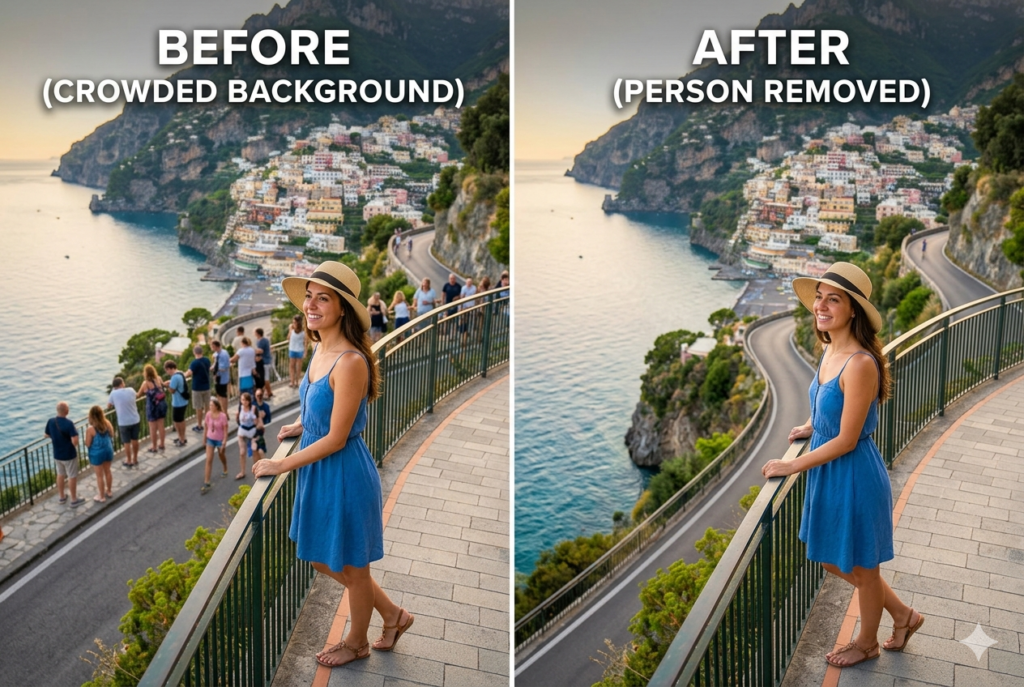
With these photo editing apps and AI tools, your travel photos, social media content, and personal memories will look clean, professional, and visually engaging in 2026.