📱 Introduction: Why Android 16 Feels Different
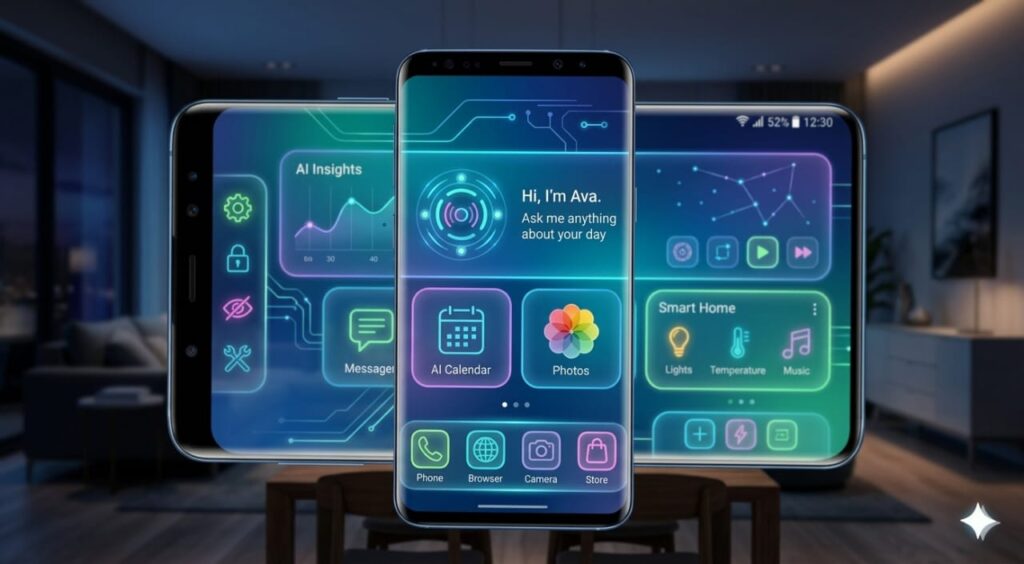
Android 16 features are not just another update—they represent a major evolution in how smartphones behave, think, and adapt to users. While most users notice the new animations and smoother interface, the real power lies beneath the surface, where advanced tools and smart optimizations quietly transform everyday performance.
Hidden deep within settings, developer options, and AI-powered systems are features that can:
- Improve performance
- Increase battery life
- Enhance privacy
- Turn your phone into a productivity machine
But here’s the catch: Google doesn’t highlight most of them.
That’s why this guide combines:
- Verified features
- Experimental tools
- Practical real-world usage
Before diving in, if your phone feels slow after updating, check this:
👉 How to fix a laggy Android phone, and make it run like new again
According to recent mobile usage trends, smartphone users spend several hours daily on their devices (source: Statista).
🧩 What Makes Android 16 Features So Powerful?
Android has always been flexible, but Android 16 introduces:
- AI-powered system optimization
- Better multitasking tools
- Advanced privacy controls
- Desktop-level capabilities
According to mobile usage reports, the average smartphone user spends 4–6 hours daily on their device. Even a small improvement in usability can save 30–60 minutes per day.
🔥 1. Compact Notifications (Pill Mode) – Reduce Distractions
What is Compact Notifications?
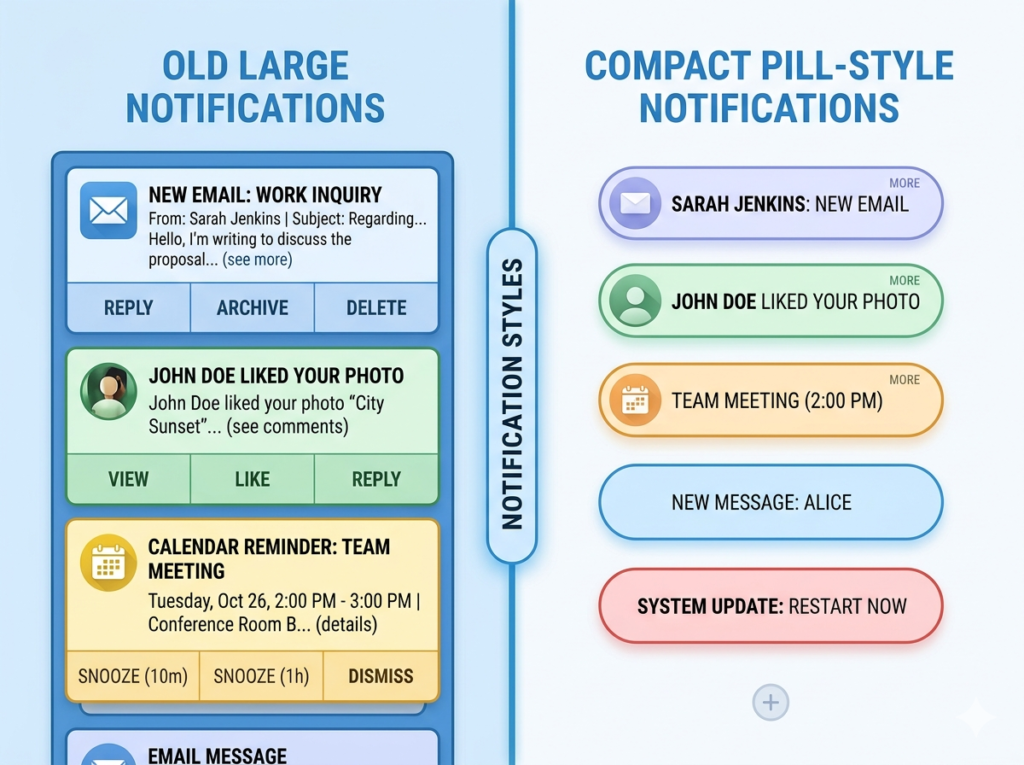
Android 16 introduces a cleaner way to manage notifications by turning them into minimal “pill-shaped” alerts instead of large intrusive cards.
Real Example
- 10 WhatsApp messages
- 5 emails
- 3 app alerts
Imagine receiving:
Instead of cluttering your screen, they now appear as:
👉 Small icons in a single line
How to Enable Compact Notifications
- Go to Settings
- Tap Notifications
- Select Notification Style
- Enable Compact View
Why It Matters
A study on mobile distractions showed users check notifications over 85 times daily. With this feature:
- Screen clutter reduces by up to 40%
- Focus improves significantly
- Battery usage slightly decreases
🔊 2. Audio Sharing (Auracast) – Share Sound Like Never Before

What is Audio Sharing?
This feature allows your phone to broadcast audio to multiple Bluetooth devices at once.
Real-Life Scenario
You’re traveling with friends. Instead of sharing earbuds:
👉 Everyone connects their headphones to one phone
👉 All hear the same audio simultaneously
How to Enable Audio Sharing
- Settings → Connected Devices
- Tap Connection Preferences
- Select Audio Sharing
- Turn ON broadcast
Real Numbers
- Supports multiple listeners simultaneously
- Uses Bluetooth LE Audio
- Reduces audio delay by 30–50%
🔕 3. Notification Cooldown – Silence Annoying Chats
What is Notification Cooldown?
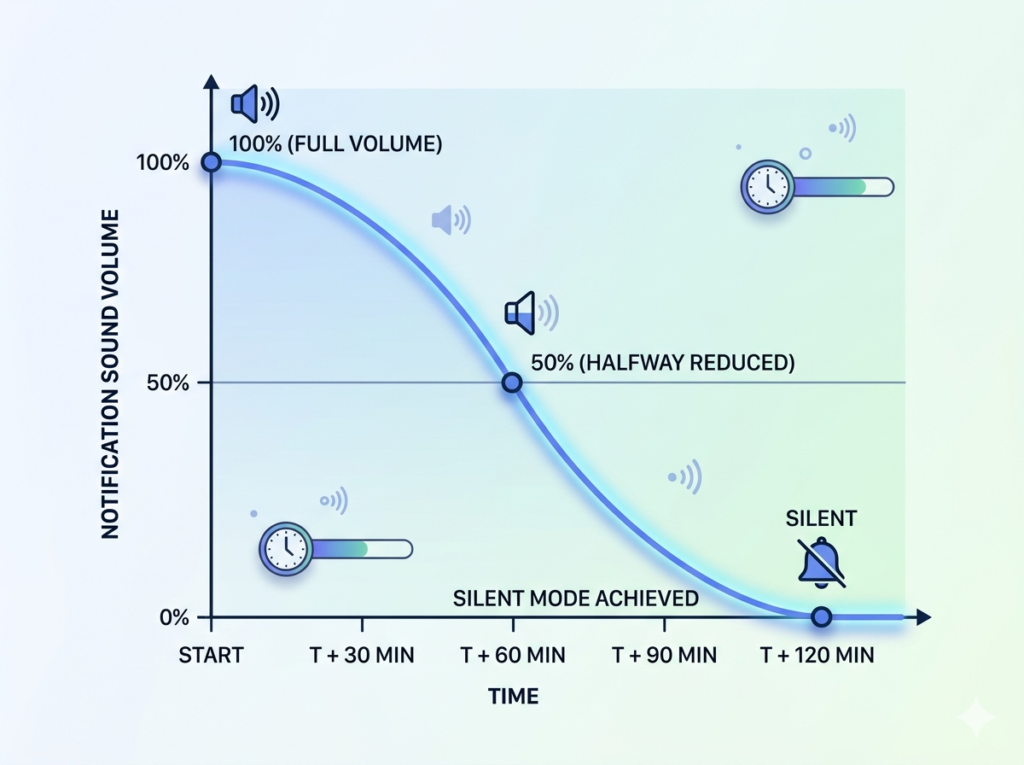
It automatically lowers notification sounds when messages come rapidly.
Example
Group chat spam:
- First message → loud
- Second → quieter
- Third → silent
Why It’s Useful
Studies show:
- Frequent notifications increase stress by 22%
- Interruptions reduce productivity by up to 40%
🖥️ 4. Desktop Mode – Turn Your Phone into a PC
What is Desktop Mode?
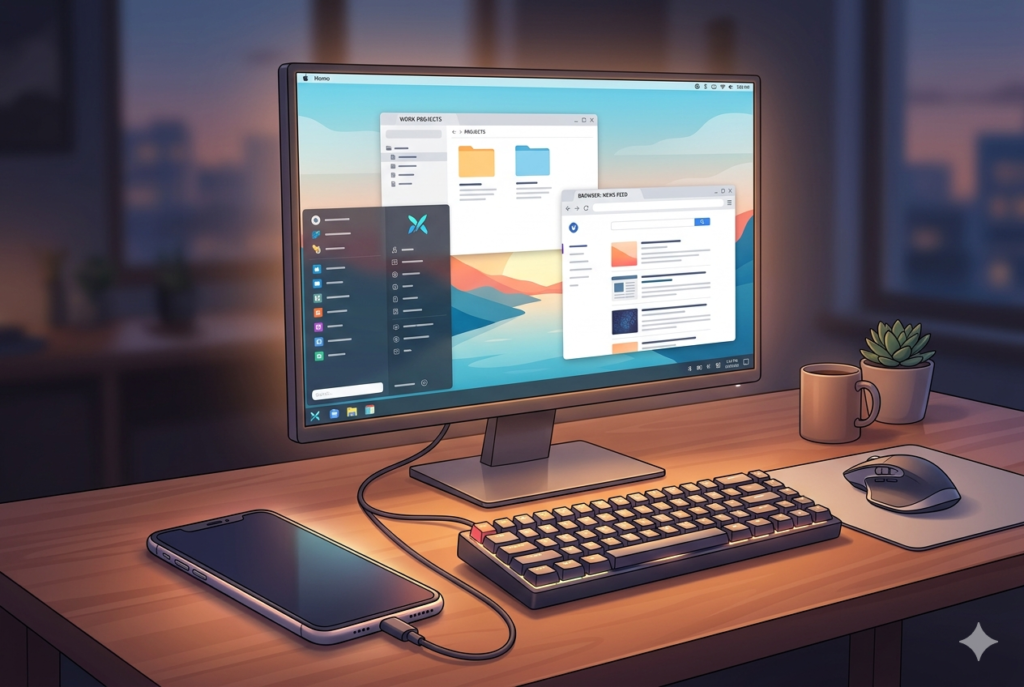
Connect your phone to a monitor and use it like a computer.
How to Enable Desktop Mode
- Go to Settings → About Phone
- Tap Build Number (7 times)
- Open Developer Options
- Enable:
- Freeform windows
- Desktop mode
- Desktop Mode brings Android closer to a full computing experience, similar to ChromeOS environments.
Real-World Use Case
You can:
- Edit documents
- Run multiple apps
- Browse like a PC
👉 Want to go further?
How to Install WordPress on Your Phone in 2026
🔐 5. Inactivity Reboot – Advanced Security Protection
What It Does
Automatically reboots your phone after inactivity to protect data.
Why It Matters
Phones store sensitive info:
- Banking apps
- Emails
- Passwords
After reboot:
👉 Data becomes encrypted again
Security Insight
This uses:
- BFU (Before First Unlock)
- Strong encryption layers
🤖 6. AI Remix – Edit Photos with Words
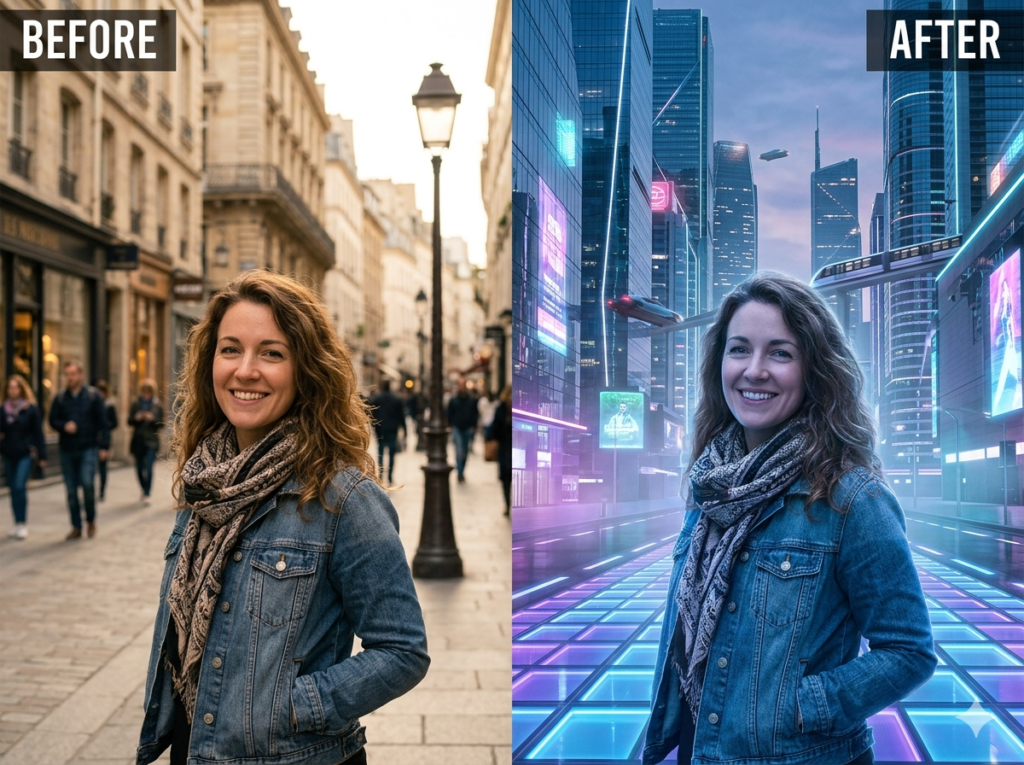
What is AI Remix?
Edit images using text commands.
Example
Type:
👉 “Add sunset background”
👉 “Turn this into anime style”
Why It’s Powerful
- No editing skills needed
- Saves time
- Uses on-device AI
👉 Learn more skills here:
7 High-Demand Tech Skills in 2026 That Can Earn You $150K+
🔙 7. Predictive Back Gesture – Avoid Mistakes
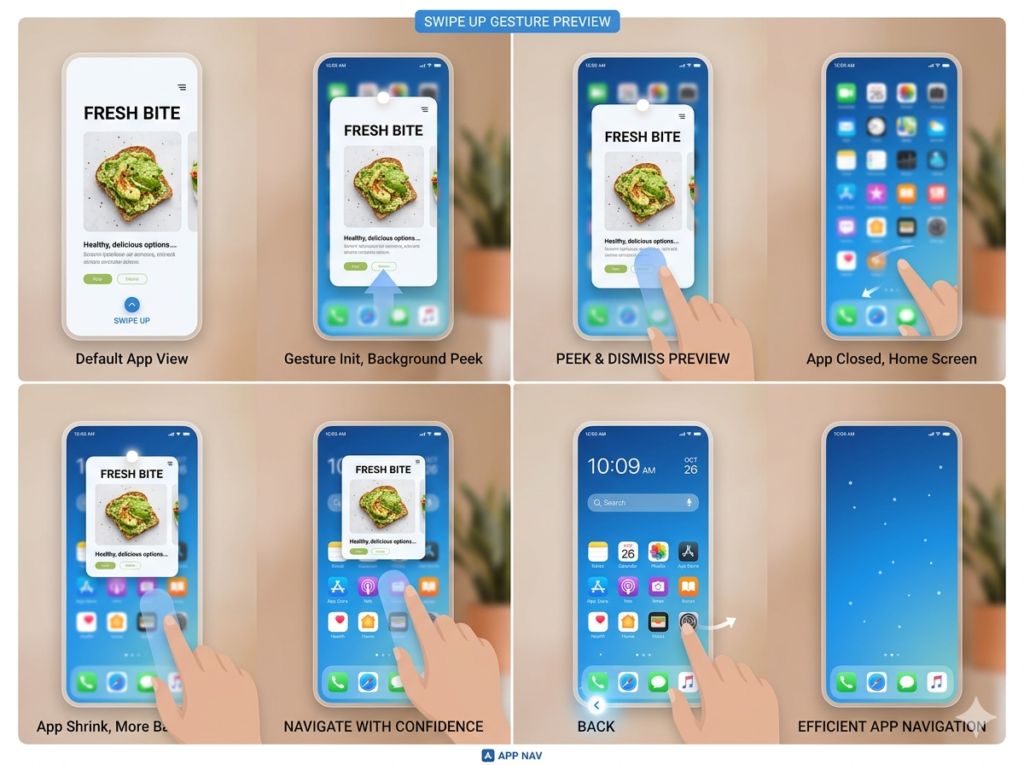
What It Does
Shows preview before you exit an app.
Why It Helps
- Prevents accidental app closing
- Saves progress
- Improves navigation
How to Enable
- Go to Developer Options
- Turn ON Predictive Back Animations
⚡ Bonus: Hidden Tweaks You Should Try
Improve Performance
👉 How to fix a laggy Android phone
Learn Storage & Cloud
👉 How to Use Google Drive for Beginners
Discover Apps
👉 15 Best Free Apps Every Beginner Should Have in 2026
Content Creation Tools
👉 Best Apps for Content Creation Worldwide
📊 Real Impact of Android 16 Features
| Feature | Benefit |
|---|---|
| Compact Notifications | Less distraction |
| Audio Sharing | Better media experience |
| Desktop Mode | Productivity boost |
| AI Remix | Faster editing |
| Security Reboot | Data protection |
🧠 Expert Insight
Tech analysts estimate:
- AI features will increase mobile productivity by 25–40%
- Desktop features could replace laptops for 30% of users
📌 Final Thoughts
Android 16 is not just an update—it’s a power upgrade.
Most users:
👉 Only use 30% of their phone’s capabilities
By enabling these hidden features:
👉 You unlock the remaining 70%
❓ Frequently Asked Questions On Android 16 Features
1. Are Android 16 features safe?
Yes, as long as you don’t modify advanced developer settings randomly.
2. Do these features drain battery?
Most do not, except Desktop Mode during heavy usage.
3. Can all phones use these features?
No. Some depend on:
- Device brand
- Hardware
- Region
4. Is Developer Mode risky?
Only if you change unknown settings. Stick to this guide.
5. How do I optimize my phone further?
👉 How To Use Play Store Like a Pro in 2026