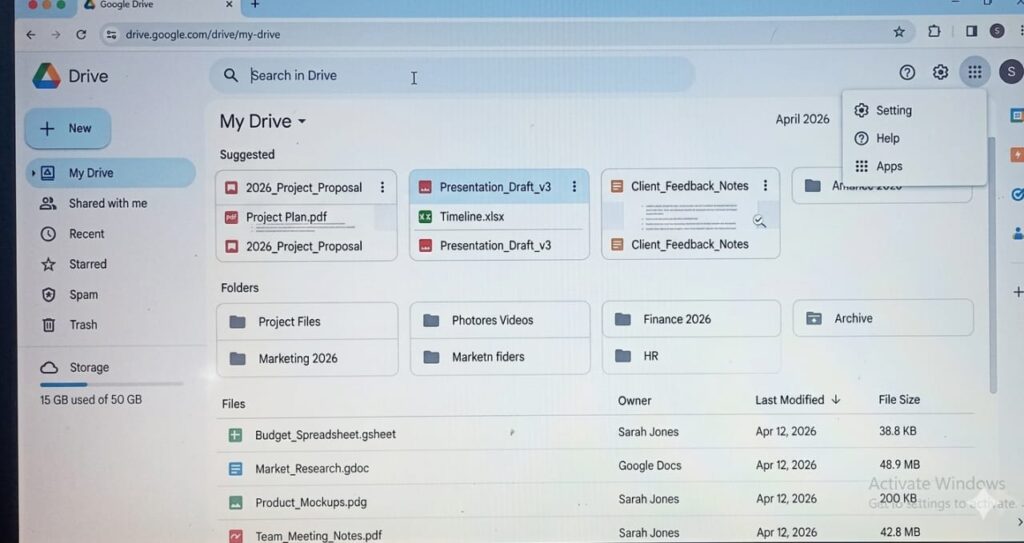
📌 Introduction: Why Google Drive Matters in 2026
If you’ve ever lost important files, struggled to send large documents, or needed access to your work on different devices, then learning Google Drive for beginners is one of the smartest things you can do today.
Over 2 billion users worldwide rely on cloud storage tools, and Google Drive leads the pack thanks to its simplicity, free storage, and powerful collaboration features.
👉 Real story: A teacher lost 5 years of lesson plans due to a laptop crash. After switching to Google Drive, she now safely manages over 12,000 files across devices—for free.
🧠 What is Google Drive?
Google Drive is a cloud storage platform that allows you to:
- Store files online securely
- Access them from any device
- Share files instantly
- Collaborate in real time
📊 With 15GB free storage, you can store:
- ~5,000 photos
- ~250,000 documents
- Hours of video
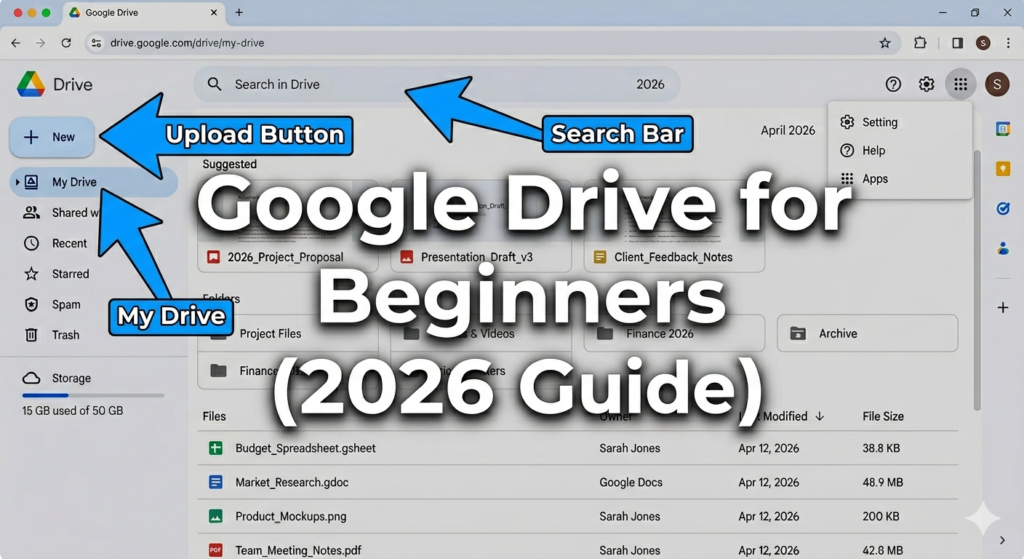
Google Drive for Beginners
🔑 Google Drive for Beginners: Step-by-Step Guide
🧾 Step 1: Sign In
- Go to drive.google.com
- Log in using your Google account
- Create one if needed
👉 If you’re setting up your device, read:
/how-to-set-up-email-on-phone-2026/
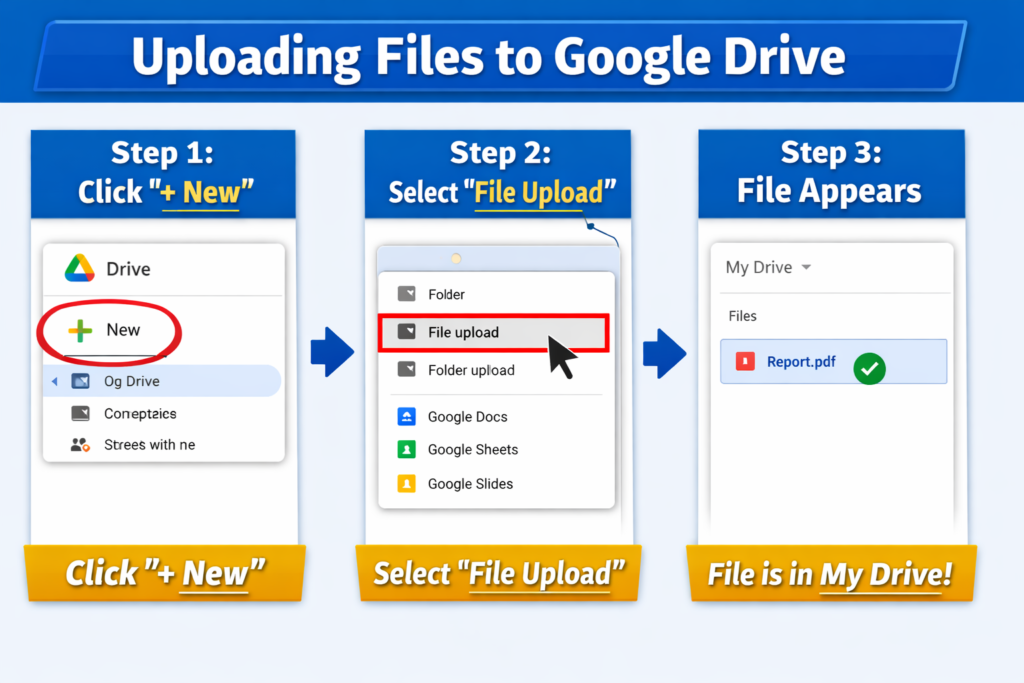
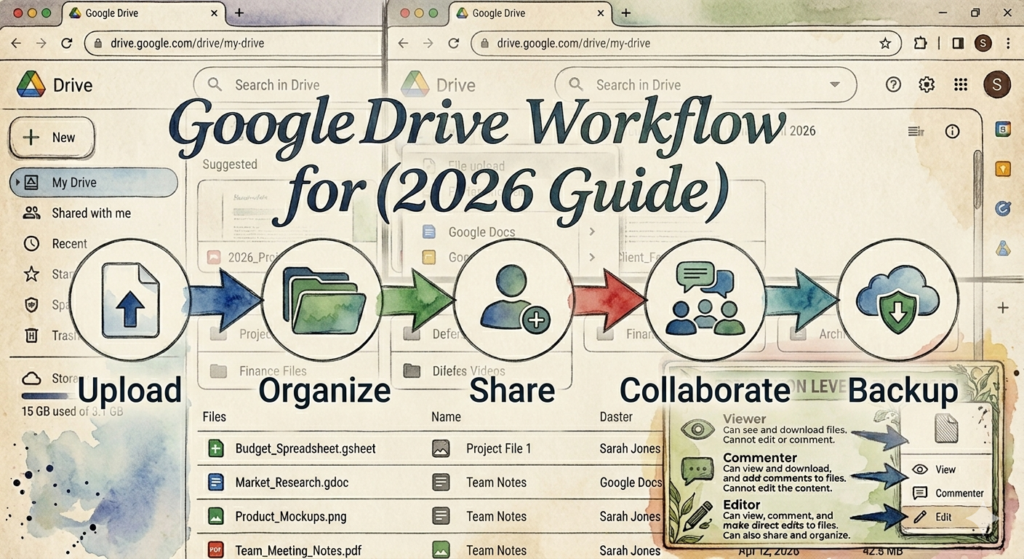
📤 Step 2: Upload Files (4 Easy Methods)
Method 1: Drag & Drop (Fastest)
- Drag files directly into Drive
Method 2: Upload Button
- Click + New → File Upload
Method 3: Folder Upload
- Upload entire folders at once
Method 4: Mobile Upload
- Use the app to upload photos instantly
📊 Users upload 5+ billion files daily across cloud platforms.
📄 Step 3: Create Documents Without Microsoft Office
Google Drive includes:
- Docs → Writing
- Sheets → Spreadsheets
- Slides → Presentations
👉 Example: Write an essay, track expenses, and create slides—all in one place.
📁 Step 4: Organize Files Like a Pro
Create Folder Structure:
My Drive/
├── Personal/
├── Work/
├── School/
└── Archive/
Tips:
- Use clear names
- Color-code folders
- Drag files easily
📊 Organized users save 30% more time.
🔍 Step 5: Search Files Instantly
Use the search bar to find:
- File names
- File types
- Keywords
👉 Example: Search “invoice PDF” to locate documents instantly.
🔗 Step 6: Share Files Securely
Steps:
- Right-click file
- Click Share
- Enter email or copy link
Permissions:
- Viewer
- Commenter
- Editor
⚠️ Always double-check permissions to avoid accidental sharing.
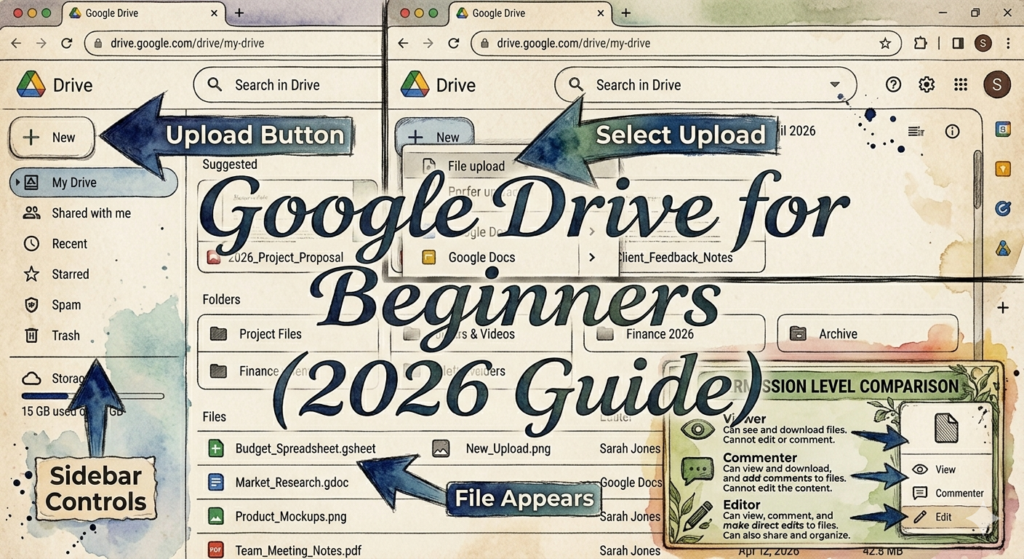
👥 Step 7: Collaborate in Real Time
Features include:
- Live editing
- Comments
- Suggestions
📊 Teams complete projects 20–25% faster using cloud tools.
📥 Step 8: Download Files
- Right-click → Download
📱 Step 9: Use Google Drive on Mobile
Features:
- Scan documents
- Upload photos
- Access files anywhere
👉 Improve performance with:
/how-to-speed-up-my-android-phone-2026/
📶 Offline Access: Work Without Internet
Enable offline mode:
- Chrome → Settings → Enable offline
- Mobile → “Available offline”
👉 Changes sync automatically when you reconnect.
💾 Storage Management: Never Run Out
What uses storage:
- Gmail
- Drive files
- Photos
Free up space:
- Delete large files
- Empty trash
- Remove old emails
👉 If your phone slows down:
/fix-slow-android-phone-2026/
🔒 Security & Backup Tips
- Enable 2-factor authentication
- Use strong passwords
- Check sharing permissions
📊 Google uses bank-level encryption (AES-256).
🔥 Best Tips to Master Google Drive for Beginners Faster
- Use search filters to find files quickly
- Star important files
- Use keyboard shortcuts
- Organize weekly
- Avoid duplicate uploads
❌ Common Mistakes to Avoid
- Not organizing files
- Sharing with wrong permissions
- Ignoring storage limits
- Poor file naming
📊 Real-Life Use Cases
🎓 Students
- Assignments
- Group work
💼 Professionals
- Reports
- File sharing
📸 Personal
- Photos
- Documents
👉 For more tools, check:
/best-free-apps-for-beginners-2026/
🌐 External Resources
🔐 Transparency & Accuracy
This guide is based on real-world usage, official documentation, and practical experience to ensure accuracy and reliability.
❓ FAQ: Google Drive for Beginners (Beginner-Friendly Answers)
1. 🤔 Is Google Drive really free, or is there a catch?
Yes—Google Drive gives you 15GB of free storage right away. There’s no hidden cost. However, this space is shared with Gmail and Google Photos, so managing your storage wisely is important.
2. 📶 Can I use Google Drive without internet?
Yes! You can enable offline mode and still open or edit files. Once you’re back online, everything syncs automatically—no extra steps needed.
3. 🔐 Is my data safe on Google Drive?
Absolutely. Google uses bank-level encryption (AES-256) to protect your files. For extra safety, enable 2-factor authentication (2FA).
4. 📤 How do I send large files easily?
Instead of emailing large files, simply upload them to Google Drive and share a link. It’s faster and avoids file size limits.
5. 🗑️ What if I accidentally delete a file?
Don’t panic! Deleted files go to the Trash, where they stay for up to 30 days. You can restore them anytime during that period.
6. 📱 Can I access Google Drive on my phone?
Yes! The mobile app lets you:
- Upload files
- Scan documents
- Access everything anywhere
7. 💾 What happens when my storage is full?
You won’t be able to upload new files. To fix this:
- Delete unused files
- Empty Trash
- Or upgrade storage
8. 🎥 Can I upload videos and watch them directly?
Yes, you can upload videos and stream them inside Google Drive without downloading.
9. 👥 Can I share files with people who don’t have Google accounts?
Yes! Use “Anyone with the link” sharing option so they can view your file without signing in.
10. ⚡ What’s the fastest way to learn Google Drive?
Practice! Start by:
- Uploading files
- Creating folders
- Sharing one document
You’ll learn faster by doing than by reading.
11. 🧠 What’s the biggest mistake beginners make?
The most common mistake is not organizing files early. This leads to clutter and wasted time later.
12. 🔎 Can Google Drive search inside files?
Yes! It can even read text inside PDFs and images using smart search technology.
13. 🔄 Can I undo changes in a document?
Yes, Google Drive keeps version history, so you can restore older versions anytime.
14. 💻 Do I need to install anything to use Google Drive?
No installation is required—you can use it directly in your browser.
15. 🌍 Can I use Google Drive on multiple devices?
Yes! You can access your files from:
- Phones
- Tablets
- Laptops
- Public computers
🏁 Conclusion: Start Using Google Drive Today
Learning Google Drive for beginners is one of the most valuable digital skills in 2026.
It helps you:
- Stay organized
- Work smarter
- Access files anywhere
- Collaborate easily
👉 Start now: Upload your first file and explore the power of cloud storage.